Translating FormBuilder
As of 6.10, you are able to use the new FormBuilder for labels, and other fields. Normally, during the upgrade the strings should be populated into the new translation system, but I will give instructions on how to go through the entire process.
Note: This process assumes you have already setup a multilingual system
Build your Form
- Go to Administer > Customize Data and Screens > FormBuilder
- Edit your Form
- Make changes to any of the labels, options, and/or descriptions to the Form fields
- Click Save
Now the strings from this Form will have been saved into the new translation repository.
Note: Only labels that are changes to the field label, options and/or descriptions are saved, as the default translations are used when not modified.
Translate your Form
Each time a new language is added there is now a corresponding translation repository for each different language that is used presently by FormBuilder, Searchkit (soon), and Scheduled Reminders.
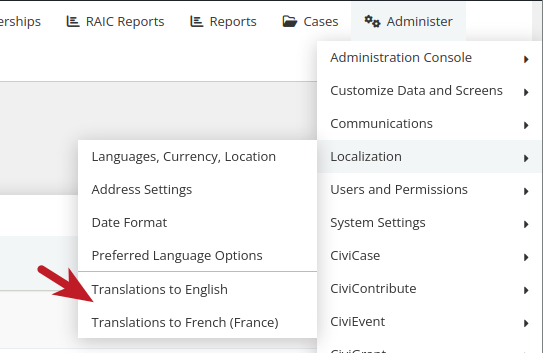
- Go to Administer > Locations > Translations to yourlanguage (where yourlanguage will be any of the languages presently installed)
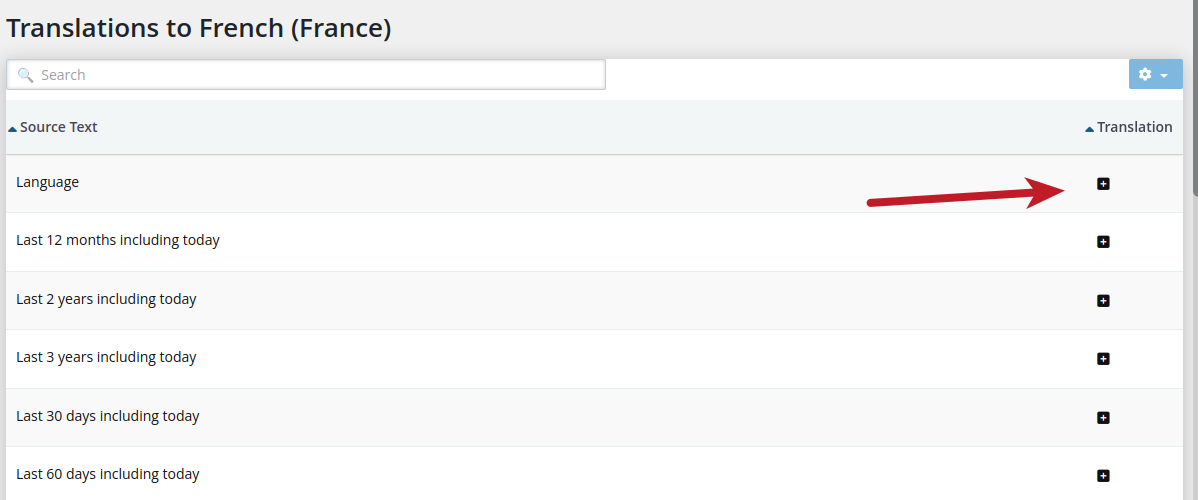
- Click on the
+in order to translate to another language
Technical Details
- FormBuilder will search for the appropriate translations in the translation system, and then check internal or extension translation files (.po files) next. This gives us an opportunity to make specific translations for individual fields on each Form on a case-by-case basis and ensure that they are respected if setup by the user.
- A majority of the strings in FormBuilder can be translated, such as: options, titles, custom text, pre/post text, and labels
- If you find a string that should be translated that is not please open a ticket here