Setup¶
After installing, five steps let a first user connect. No
command line is needed; the cv equivalents are at the end of this page.
On WordPress, open these screens inside wp-admin
The CiviCRM plugin refuses every civicrm/admin/... page on the public site, even for
administrators. Use the menu inside wp-admin, or an address of the form
https://<your-site>/wp-admin/admin.php?page=CiviCRM&q=civicrm/admin/mcp/setup.
Before you start¶
- The extension is installed and enabled, and the database update has run (
cv updb, or the prompt on CiviCRM's System Status page). Without it, the call log table is missing and every tool call is refused. - The site is served over HTTPS. AI clients will not sign in to a plain-HTTP address.
- Keep CiviCRM's debug mode off on a live site. With it on, CiviCRM accepts API calls that did not come from its own pages, so another website could press the buttons on these screens for a signed-in administrator.
1. Give the connect permission¶
Go to Administer → Users and Permissions → Permissions (Access Control) and choose WordPress Permissions (or Drupal Permissions, Backdrop Permissions, or User Roles on Standalone). This opens your CMS's role settings, with a column for each role and a row for each permission. The extension adds two rows:
| Permission | Editor | Author | Subscriber | … |
|---|---|---|---|---|
| CiviCRM MCP: connect an AI client Connect an AI client (such as Claude or ChatGPT) that reads CiviCRM as this user. While "Require a profile" is on, the user also needs an active permission profile. |
☑ | ☐ | ☐ | |
| CiviCRM MCP: view the call log Read the log of every tool call made through the MCP connector, including the arguments each caller sent. Staff only. |
☐ | ☐ | ☐ |
Tick CiviCRM MCP: connect an AI client for each role whose members should be able to connect
an AI client, and save. On WordPress the permission is the capability access_mcp. Leave view
the call log for now: it is for auditors (Reading the call log).
This is the first of two locks. The role decides whether anyone in it may use an AI client at all; a permission profile (step 3) decides which people, and with which tools. While Require a profile is on (the default) someone needs both; with it off, this permission is the only lock. Removing it from a role cuts that role off at its next request.
Keep it to as few roles as possible. Administrators hold every permission (on WordPress, any
user with the administrator capability, and network super admins on multisite), so they need no
tick. See Security and permissions.
2. Open the setup checklist¶
Now go to Administer → Users and Permissions → MCP (AI connector) → Setup checklist. (The MCP screens are also listed on CiviCRM's Administer page, under Users and Permissions.) It lists what is still missing. Each check shows Passed, Failed (with how to fix it) or Not checked. Work down it until nothing fails; Check again reruns it.
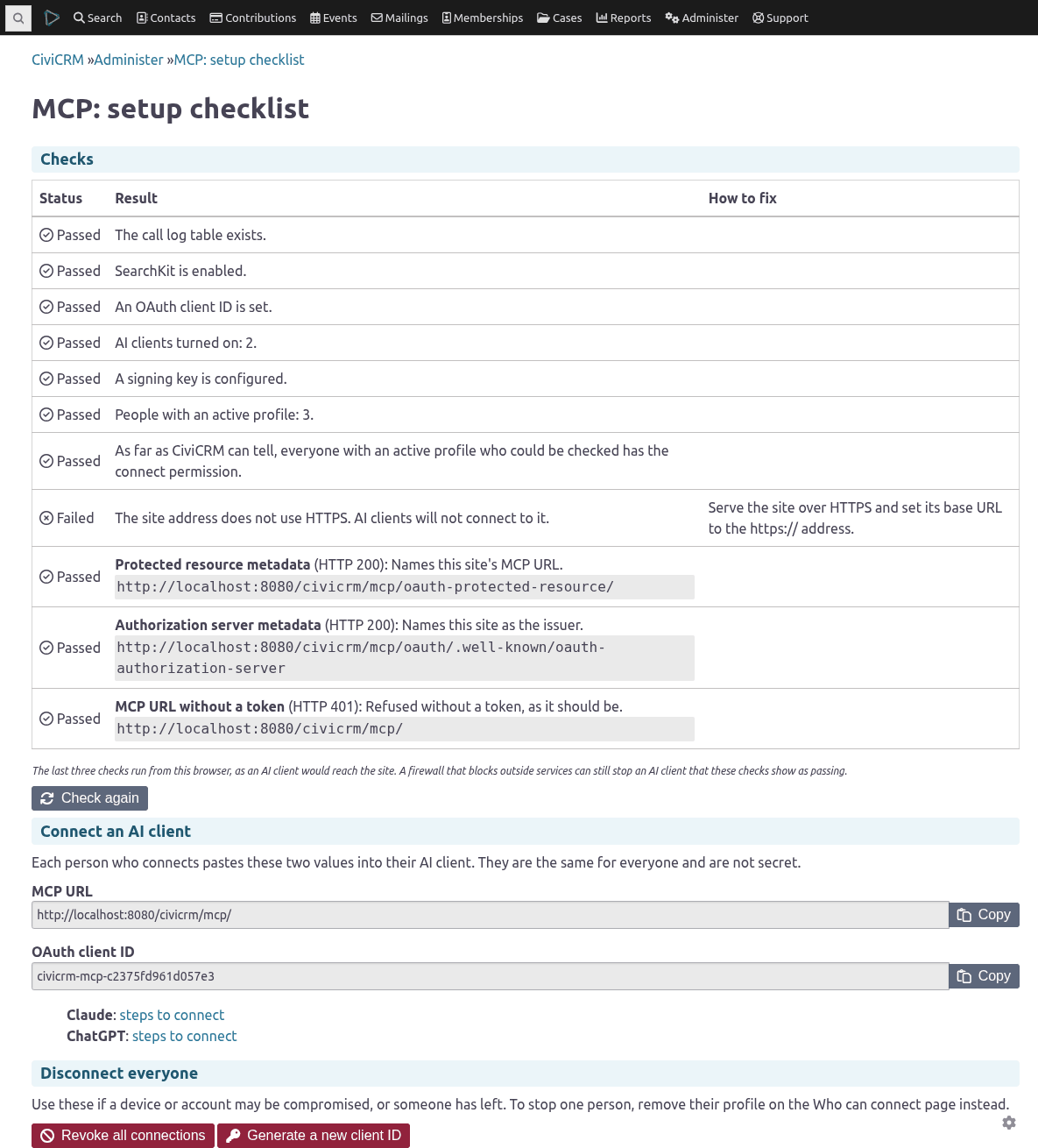
The setup checklist on a test site. The HTTPS check fails because the test site runs on plain HTTP; on your site, every check should pass.
The page shows each check's result as a sentence. In order, the site checks are:
| Check | What it means |
|---|---|
| Call log table | The database update has run. Every tool call is refused until it has |
| SearchKit | CiviCRM's SearchKit extension is enabled. The call log and Who can connect screens are built on it and on FormBuilder, which this check does not test: enable both |
| Client ID | The site has an OAuth client ID. Without one, nobody can sign in |
| AI clients | At least one AI client (Claude, ChatGPT) is turned on |
| Signing key | CiviCRM has a key to sign sign-in tokens with |
| Profiles | While Require a profile is on, at least one person has an active profile and a CMS login that still matches their contact |
| Connect permission | Everyone with an active profile holds the connect an AI client permission (step 1). People whose login no longer matches their contact cannot be checked; the result says how many |
| HTTPS | The site's address starts with https:// |
Three more checks run from your browser, against the addresses an AI client will use: the two sign-in discovery documents, and the MCP address itself, which must refuse a request that carries no sign-in. If the MCP address answers such a request, the check fails as a security problem: stop and find out why before anyone connects. If your admin pages are served from a different address than the public site, these checks show Not checked.
3. Choose who may connect, and what they get¶
MCP (AI connector) → Who can connect is where you give people a permission profile. A
profile is a named set of AI tools, and of the kinds of record (contacts, activities, cases and so
on) that the two general-purpose tools, Read CiviCRM records (civi_get) and Describe CiviCRM data (civi_describe), may read. Each person has at most
one profile.
A profile only takes things away. Every tool still runs as that person, with their own CiviCRM permissions and ACLs, so a profile can never give someone more than CiviCRM already does.
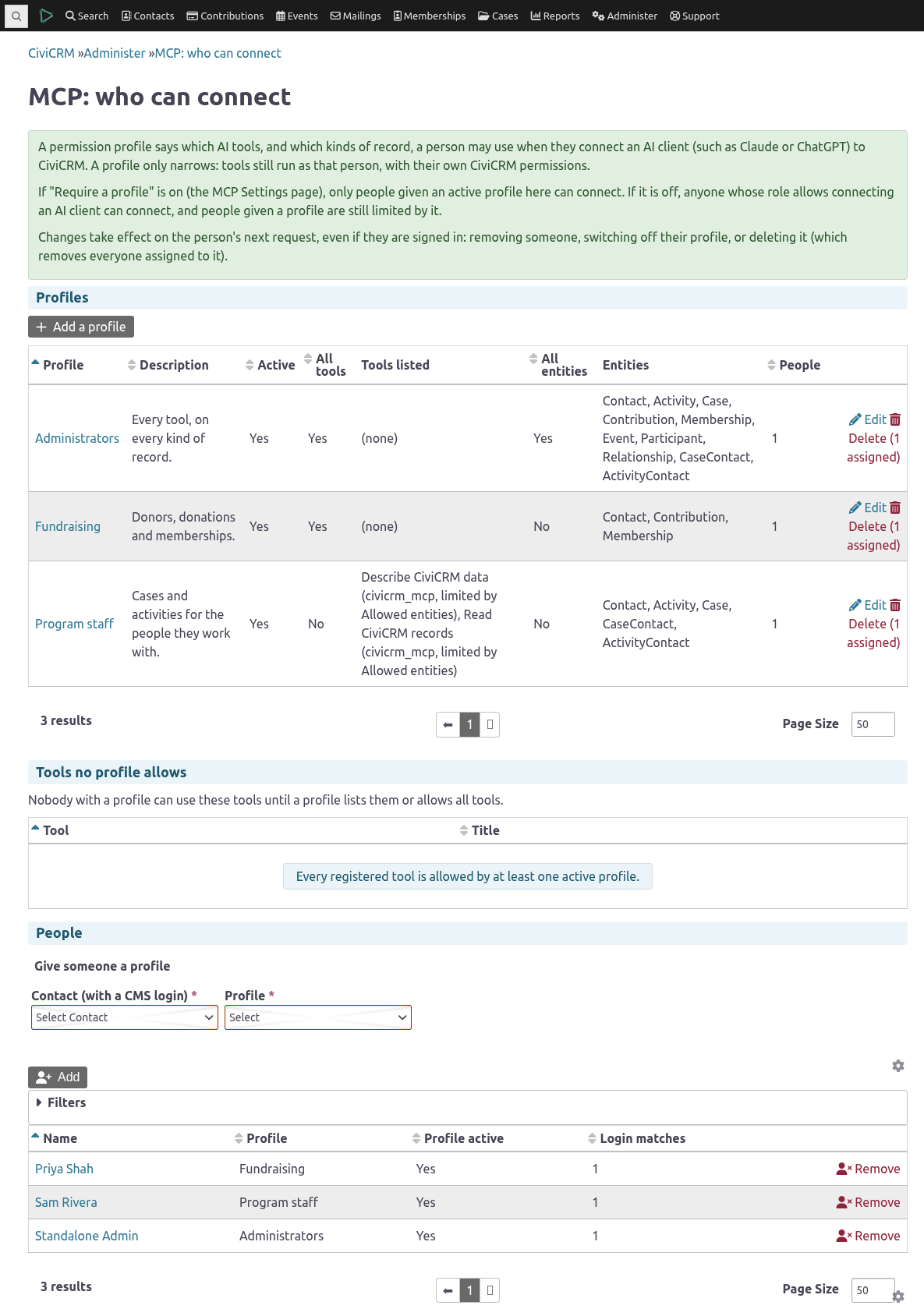
Who can connect, with three example profiles and the people who hold them.
- Add a profile. Give it a name, and either tick All tools (every tool your site offers,
including ones added later) or choose the tools it allows (Built-in tools
describes the two this extension adds). Each tool in the list shows the
extension that adds it, and whether Allowed entities limits it (only those two tools). Then
either tick All entities (every entity they offer, including ones added later) or choose the
entities they may read. With All tools off, a profile with no tools allows none; with All
entities off, one with no entities lets them read nothing: an empty list never means
"everything". The entities limit
where a query starts, not what it joins to: a profile without Contact can still read a
contact's name through an activity's
contact_id.display_name, if the person's own permissions allow it. A profile picks tools; CiviCRM's permissions and ACLs are what limit the data. - Add a person. Choose their contact and the profile. Only contacts with a CMS login are offered, because only they can sign in, and the profile belongs to that login. If the contact's login later changes (an account deleted and made again, or two contacts merged), they are refused, and the Login matches column shows 0: remove them and add them again. A row whose contact was deleted shows (contact deleted or in the trash); it keeps refusing that login until you remove it. To move someone to another profile, change it in the People list.
- Check Tools no profile allows on the same page. A tool listed there is offered to nobody with a profile until a profile lists it or allows all tools. New tools from other extensions appear there.
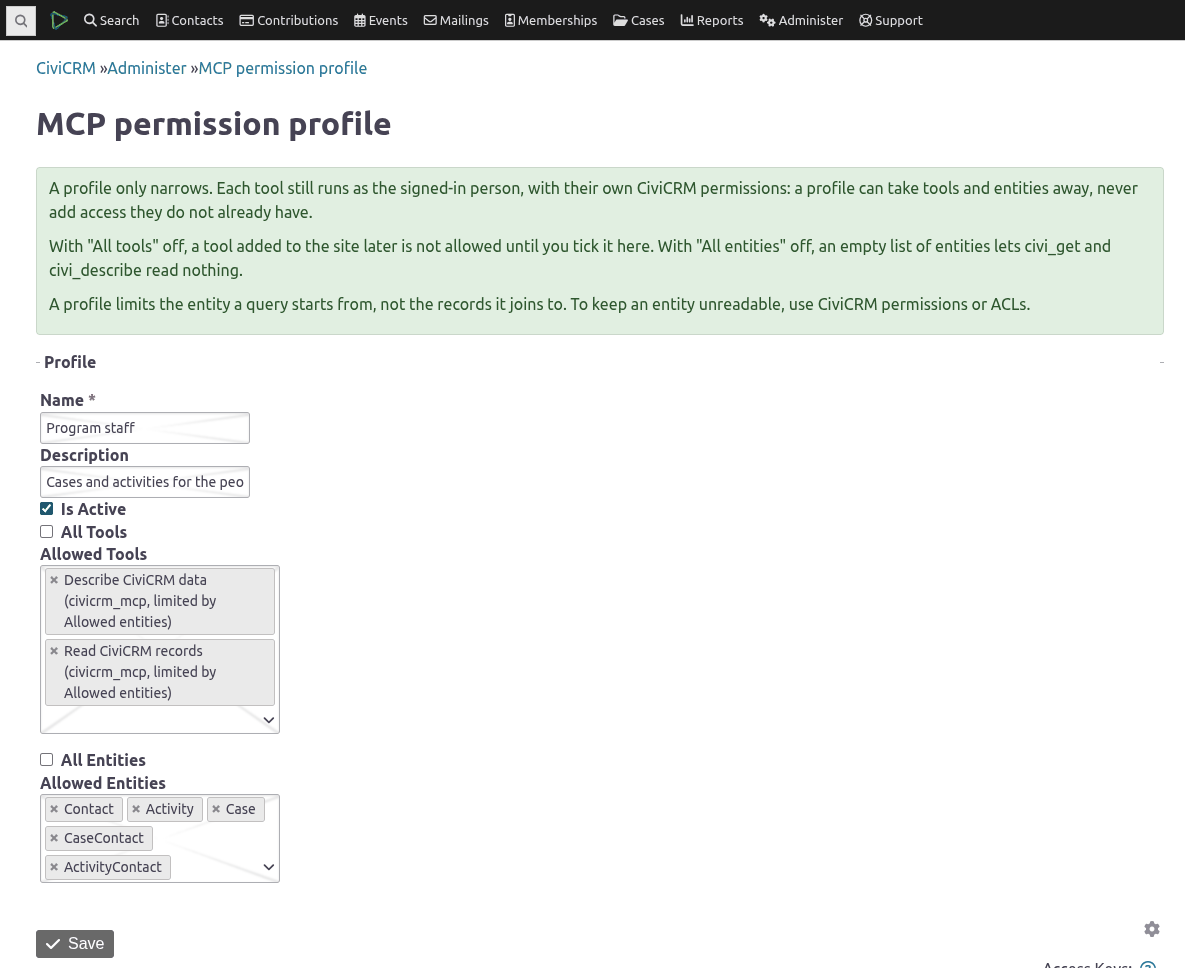
Editing a profile that allows the two built-in tools on five entities.
Changes take effect on the person's next request, even while they are signed in. That covers removing them, switching their profile off, changing its tools and deleting it, which also removes everyone assigned to it. Switching a profile off blocks its people; removing them or deleting the profile blocks them only while Require a profile is on. With it off, someone with no profile is not limited by one, so removing them gives them every tool their own permissions allow. Deleting a profile asks you to confirm; the profile's Delete link in the list shows how many people hold it.
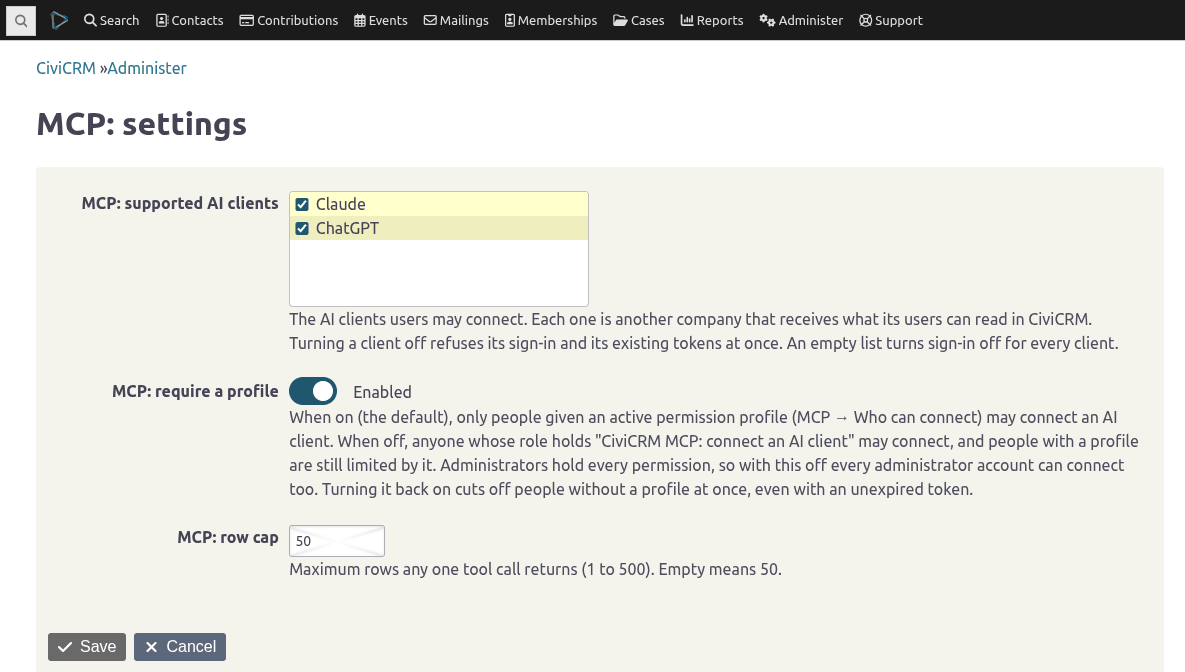
Require a profile (on the Settings screen) decides whether the connect permission from step 1 is enough on its own:
- On (the default, and recommended): a person needs both the permission and an active profile. Everyone else is refused.
- Off: the permission alone is enough. Everyone whose role has it can connect, with every tool and entity their own CiviCRM permissions allow. Administrators hold every permission, so every administrator account can connect too. Someone who does have a profile is still limited to it.
Turn it off only if everyone in those roles should be able to connect, and you don't want to give each of them a profile.
4. Choose the AI clients¶
MCP (AI connector) → Settings has the list of Supported AI clients. Claude and ChatGPT are both on by default. Each is another company that receives what its users can read in CiviCRM, so turn off any your organisation has not approved. Turning a client off refuses its sign-in and cuts off its existing connections at once. Turning it back on lets those connections work again until they expire (up to 30 days), so to end them for good, also press Revoke all connections (Disconnecting everyone). The same screen sets the row cap: the most rows one tool call may return (default 50).
5. Connect¶
Back on the Setup checklist, under Connect an AI client, are the two values every AI client needs: the MCP URL and the OAuth client ID, each with a Copy button, and a link to the connect steps for each AI client that is turned on. Give both values to the people who will connect, and send them to Connect your AI client. They are the same for everyone and are not secret.
Reading the call log¶
Every tool call writes one row to the call log, refused calls included (see Security § The call log). Two kinds of user can read it:
- Administrators find it under MCP (AI connector) → Call log, and the refused calls alone under … → Refused calls (the same page with its Outcome filter set to refused; clear the filter to see everything).
- Auditors, such as a privacy officer, need the CiviCRM MCP: view the call log permission (on
WordPress,
view_mcp_call_log) and access CiviCRM. They find it under Search → MCP call log, and see nothing else of these screens. The Refused calls shortcut is in the administrators' menu only; an auditor sets the Outcome filter on the page instead.
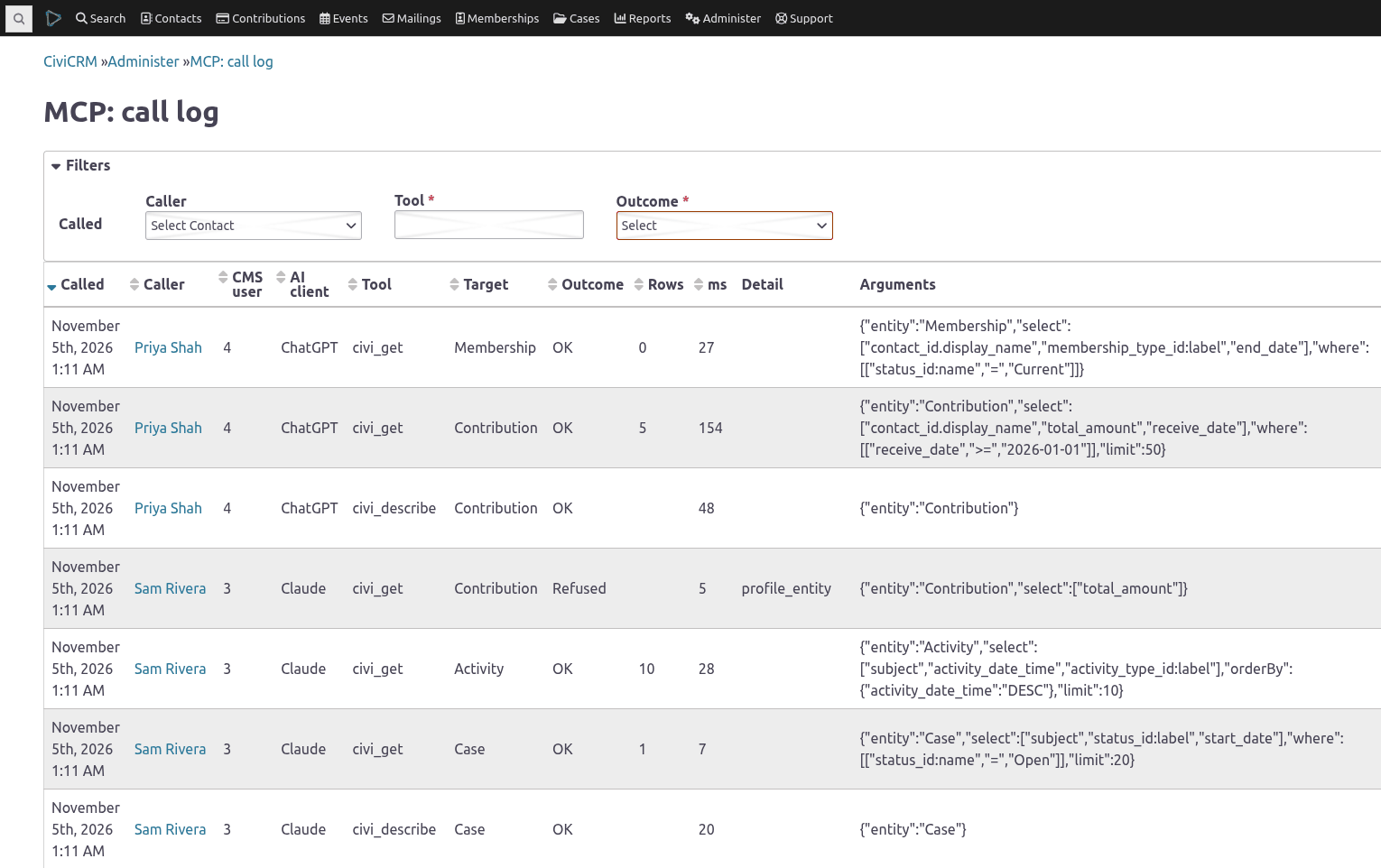
The call log. One call was refused because the caller's profile does not include Contribution.
The log shows only calls by people the viewer can see
CiviCRM applies the viewer's own contact permissions to the call log's rows. A row is shown
only when the viewer can see its caller as a contact, so an auditor with no contact access sees
few rows or none. Give them access to the people who connect: an ACL on a group of those users
is the narrowest way, view all contacts the broadest. With an ACL group, removing someone from
the group also hides their past calls. Calls by a caller in the trash stay
hidden unless the viewer also has access deleted contacts (on WordPress,
access_deleted_contacts), so an auditor without it can miss the calls of someone who has left.
Rows whose caller was deleted permanently are shown to every reader, with the CMS user ID only.
This applies to anyone who reads the log through administer CiviCRM without these contact
permissions; on WordPress, administrators hold every permission.
Only rows are filtered, not what is in them: a row's Arguments, Target and Context can name contacts the viewer cannot otherwise see, such as a name someone searched for.
Disconnecting everyone¶
Under Disconnect everyone, the Setup checklist has two buttons, each behind a confirmation. To stop one person, remove their profile on Who can connect instead. Each leaves a line in CiviCRM's log naming the contact who pressed it.
- Revoke all connections signs every AI client out. Each person has to sign in again, and new sign-ins are refused for about a minute afterwards, so that a token issued at the same moment on another web server cannot slip through. Keep your web servers' clocks synchronised: this covers clocks up to a minute apart.
- Generate a new client ID also cuts off every connection, and in addition every AI client's connector stops working until it is given the new ID. Use it when the old ID should no longer work at all.
To disable sign-in entirely, clear the client ID from the command line (below).
From the command line¶
Everything above can also be done with cv,
from the site's root directory.
# The client ID (to give to your AI clients)
cv vget mcp_client_id

# Supported AI clients: Claude only, none, or both
cv api4 Setting.set +v mcp_enabled_clients='["claude"]'
cv api4 Setting.set +v mcp_enabled_clients='[]'
cv api4 Setting.set +v mcp_enabled_clients='["claude","chatgpt"]'

# Stop requiring a profile (0, never "false")
cv api4 Setting.set +v mcp_allowlist_enforced=0

# Revoke every token issued until now
cv api4 Setting.set +v mcp_token_epoch=$(date +%s)

# Disable sign-in entirely
cv api4 Setting.set +v mcp_client_id=
Gotchas:
- Boolean settings take
0or1.cv api4 Setting.set +v mcp_allowlist_enforced=falsestores the text "false", which counts as on. - Do not use
cv vsetformcp_enabled_clients.cv vset mcp_enabled_clients=stores "not set", which means the default, both on. To turn every client off, set it to an empty list,'[]'; reverting it to its default turns both on. Unknown names are ignored, and a value that is not a list turns sign-in off for every client. - Setting the epoch by hand does not leave the minute's margin that Revoke all connections does (above). On a site with more than one web server, prefer the button. Never set it lower than it is: revoked tokens would start working again.